OverTheWire Bandit
11 phút đọc2.229 từ
Level 0
Level Goal
The goal of this level is for you to log into the game using SSH. The host to which you need to connect is bandit.labs.overthewire.org, on port 2220. The username is bandit0 and the password is bandit0
Kiến thức cần thiết
Solution
Thông tin đăng nhập là:
- host bandit.labs.overthewire.org
- port 2220
- user bandit0
- password bandit0
Lệnh cần sử dụng: ssh
Cú pháp: ssh user@host -p port
-> ssh bandit0@bandit.labs.overthewire.org -p 2220
Nó sẽ hỏi bandit0@bandit.labs.overthewire.org's
Nhập password:bandit0
Level 0 -> 1
Level Goal
The password for the next level is stored in a file called readme located in the home directory. Use this password to log into bandit1 using SSH. Whenever you find a password for a level, use SSH (on port 2220) to log into that level and continue the game.
Kiến thức cần thiết
Login
Kết nối với level 0 bằng ssh
ssh bandit0@bandit.labs.overthewire.org -p 2220
Và nhập password bandit0
Solution
Ta sử dụng ls để liệt kê file trong thư mục home~:
==ls-> Tìm thấy file readme
Dùng cat để đọc file readme
cat readme -> 6y2kwnwK6grgvwvpvLaa2T1cpFEKOhNR
Level 1 -> 2
Level Goal
The password for the next level is stored in a file called - located in the home directory
Kiến thức cần thiết
dashes filename
Login
Kết nối với level 1 bằng ssh
ssh bandit0@bandit.labs.overthewire.org -p 2220
Và nhập password 6y2kwnwK6grgvwvpvLaa2T1cpFEKOhNR
Solution
ls -> - file
cat - thì lại không trả về kết quả
Bởi vì cat - thì ta coi - là argument.
Cách sử dụng này có nhiều sự hiểu nhầm bởi vì sử dụng - như là argument sẽ coi như STDIN/STDOUT
Vì vậy nếu muốn đọc - file, ta phải chỉ rõ đường dẫn đầy đủ của file, chẳng hạn như ./ với ./ là thư mục hiện tại
-> cat ./-
Ngoài ra, có thể sử dụng < để biến - thành input cho cat thay vì bị coi như là STDIN
-> cat < -
more cũng thường dùng - cho STDIN, nhưng tùy phiên bản/cách gọi, nó có thể xử lý - khác cat
Ở trường hợp này thì more - hoạt động được
-> more -
Ngoài ra có thể sử dụng rev 2 lần để đảo ngược 2 lần coi như quay về bình thường và in ra output của -
-> rev - | rev
=> Password: PK8fYLZg2hnHSz83plBL1iEPKdD3QToB
Level 2 -> 3
Level Goal
The password for the next level is stored in a file called
--spaces in this filename-- located in the home directory
Kiến thức cần thiết
spaces in filename,
Phân biệt giữa long option và short option: ví dụ -a và --all
Login
Kết nối với level 2 bằng ssh
ssh bandit2@bandit.labs.overthewire.org -p 2220
Và nhập password PK8fYLZg2hnHSz83plBL1iEPKdD3QToB
Solution
Vì file này chứa dấu space ở giữa tên file, bắt đầu bằng -- nên sẽ cần phải xử lí 2 vấn đề
Khi tên file có dấu space ở giữa, Linux sẽ coi đó là các argument khác nhau -> sử dụng " để nhóm lại
Khi tên file bắt đầu bằng --, Linux sẽ coi đây là long option -> sử dụng -- để đóng option hoặc dùng ./ để không bắt đầu bằng --
->cat ./"--spaces in this filename--"
->cat -- "--spaces in this filename--"
=> Password: 7ZZ2LFrykP2zEyvBl4m3clcL7tGYJPME
Level 3 -> 4
Level Goal
The password for the next level is stored in a hidden file in the inhere directory.
Kiến thức cần biết
short option -a hay long option --all của command ls
Login
Kết nối với level 3 bằng ssh
ssh bandit3@bandit.labs.overthewire.org -p 2220
Và nhập password 7ZZ2LFrykP2zEyvBl4m3clcL7tGYJPME
Solution
ls
-> Thu được thư mục inhere
cd inhere
-> Di chuyển vào thư mục inhere
ls không trả về kết quả gì
Ta sử dụng lệnh ls với option -a hoặc --all để hiển thị cả những file ẩn
ls -a
-> Hiện ra file ...Hiding-From-You
cat ...Hiding-From-You
-> Pasword: xzTXq1rDJQVVAzdv5cHq1TQytTWufAMq
Level 4 -> 5
Level Goal
The password for the next level is stored in the only human-readable file in the inhere directory.
Tip: if your terminal is messed up, try the “reset” command.
Kiến thức cần biết
Login
Kết nối với level 4 bằng ssh
ssh bandit4@bandit.labs.overthewire.org -p 2220
Và nhập password xzTXq1rDJQVVAzdv5cHq1TQytTWufAMq
Solution
ls
-> Thu được thư mục inherecd inhere
-> Di chuyển vào thư mụcinherels
->-file00 -file01 -file02 -file03 -file04 -file05 -file06 -file07 -file08 -file09
Bây giờ ta cần tìm file nào chứa password ở dạng human-readable
=> Ta biết file chứa password sẽ ở định dạng text
Sử dụng lệnh file ./* để liệt kê file type của tất cả các file ở thư mục hiện tại
-> Thu được file -file07 ở định dạng ASCII text
-> cat ./-file07 hoặc cat -- -file07
=> Password: 6C7h9GD8M6ai5nr7wo1RonrzFjj9yIrG
Lưu ý: Không sử dụng được
file *vì lúc này sẽ trở thànhfile -file00thì sẽ dính lỗi short option nên không thực hiện lệnh được
Hoặc sử dụng lệnh khác khi đang ở trong thư mục inhere:
-> file ./* | grep text

Level 5 -> 6
Level Goal
The password for the next level is stored in a file somewhere under the inhere directory and has all of the following properties:
- human-readable
- 1033 bytes in size
- not executable
Kiến thức cần biết
Login
Kết nối với level 5 bằng ssh
ssh bandit5@bandit.labs.overthewire.org -p 2220
Và nhập password 6C7h9GD8M6ai5nr7wo1RonrzFjj9yIrG
Solution
cd inhere -> Di chuyển vào thư mục inhere
find . -type f -size 1033c ! -executable -> Tìm file sao cho human-readable, 1033 bytes in size, not executable
.-> Tìm từ thư mục hiện tại-type f-> Chỉ tìm file thường-size 1033c-> kích thước đúng 1033 bytes! -executable-> không có quyền executable
=> Trả về ./maybehere07/.file2
cat ./maybehere07/.file2 -> Password: pXa26xhMWaC2SvDotA4r9EgZkulOeSBW
Level 6 -> 7
Level Goal
The password for the next level is stored somewhere on the server and has all of the following properties:
- owned by user bandit7
- owned by group bandit6
- 33 bytes in size
Kiến thức cần biết
files owned by a particular user or group, 2>/dev/null
Login
Kết nối với level 6 bằng ssh
ssh bandit6@bandit.labs.overthewire.org -p 2220
Và nhập password pXa26xhMWaC2SvDotA4r9EgZkulOeSBW
Solution
Tại thư mục này, ta thử ls nhưng không tìm gì cả, ngày cả ls -a cũng vậy
Vì vậy ta quay về thư mục root directory, tức là thư mục cao nhất của Linux để tìm kiếm trên phạm vi toàn server
-> find / -user bandit7 -group bandit6 -size 33c
/-> Tìm ởroot directory-user bandit7-> File thuộc quyền sở hữu của người dùngbandit7-group bandit6-> File thuộc quyền sở hữu của nhóm dùngbandit6-size 33c-> File có size 33 bytes
Output trả ra 1 loạt file có permission denied
Vì vậy ta cần lọc ra file được find -> sử dụng 2>/dev/null
2là STDERR (output lỗi)
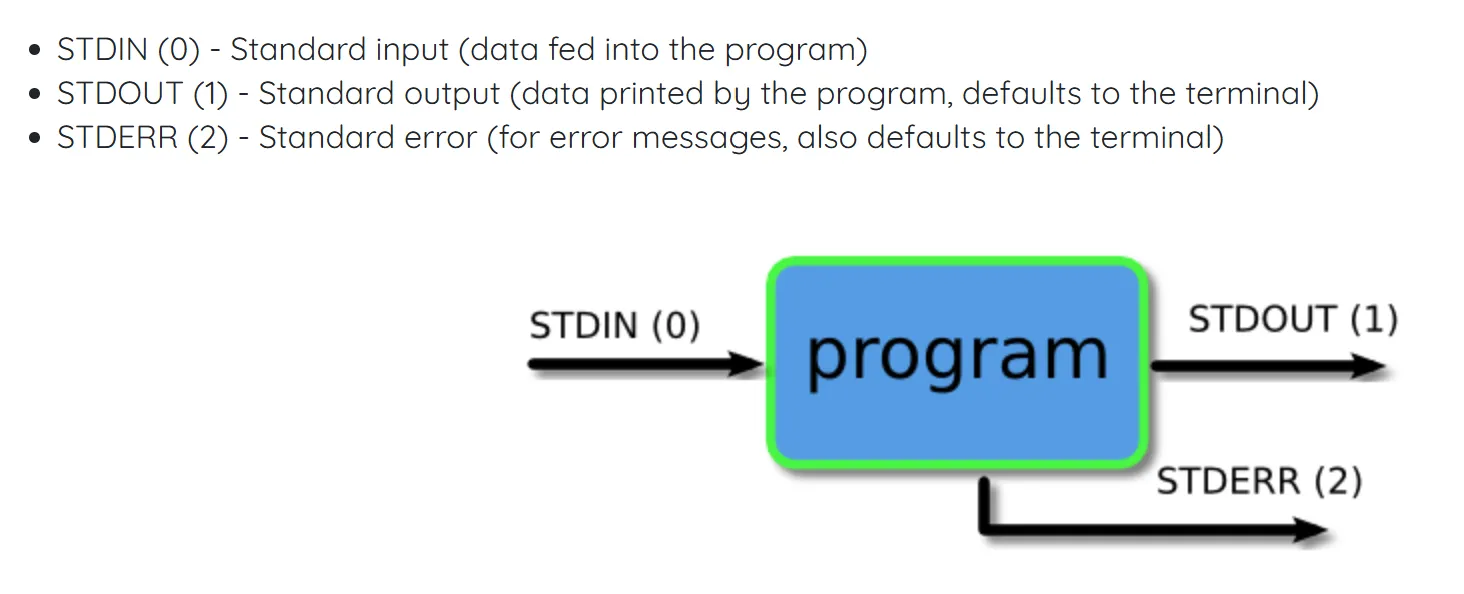
>là chuyển hướng/dev/nulllà "thùng rác" của Linux
-> find / -user bandit7 -group bandit6 -size 33c 2>/dev/null
=> Password: Bmnnvf82KzQlfxgAI2d1zYbr1u9pr3E3
Level 7 -> 8
Level Goal
The password for the next level is stored in the file data.txt next to the word millionth
Kiến thức cần biết
Login
Kết nối với level 7 bằng ssh
ssh bandit7@bandit.labs.overthewire.org -p 2220
Và nhập password Bmnnvf82KzQlfxgAI2d1zYbr1u9pr3E3
Solution
ls -> Trả về data.txt
Khicat data.txt hiện ra quá nhiều chữ nên ta phải dùng grep để tìm Password nằm kế bên từ millionth trong file data.txt
-> grep "millionth" data.txt

=> Password: VR1ljMayciFxbnUokuQmJFw6QC9VKtub
Level 8 -> 9
Level Goal
The password for the next level is stored in the file data.txt and is the only line of text that occurs only once
Kiến thức cần biết
Login
Kết nối với level 8 bằng ssh
ssh bandit8@bandit.labs.overthewire.org -p 2220
Và nhập password VR1ljMayciFxbnUokuQmJFw6QC9VKtub
Solution
Ở đây cần tìm line text mà chỉ xuất hiện 1 lần
-> Sử dụng sort để sắp xếp lại và dùng uniq để loại bỏ các dòng trùng đứng kề nhau
uniq chỉ loại bỏ các dòng trùng đứng kề nhau
- ls
->data.txt
-> sort data.txt | uniq -u
unỉq -uchỉ hiện thị dòng xuất hiện đúng 1 lần
->EjmOSvuAu7sGAHqHVcBDPirRe9T03kxl
Hoặc
->sort data.txt | uniq -c | grep " 1 "uniq -cđể đếm số dòng trùng của 1 dòng, rồigrep "1"để kiếm dòng chỉ xuất hiện 1 lần
->1 EjmOSvuAu7sGAHqHVcBDPirRe9T03kxl
Ví dụ:
apple
apple
banana
cat
cat
cat
dog
-> uniq -u:
banana
dog
-> uniq -c:
2 apple
1 banana
3 cat
1 dog
Level 9 -> 10
Level Goal
The password for the next level is stored in the file data.txt in one of the few human-readable strings, preceded by several ‘=’ characters.
Kiến thức cần biết
Login
Kết nối với level 9 bằng ssh
ssh bandit9@bandit.labs.overthewire.org -p 2220
Và nhập password EjmOSvuAu7sGAHqHVcBDPirRe9T03kxl
Solution
ls -> data.txt
-> strings data.txt | grep "====="
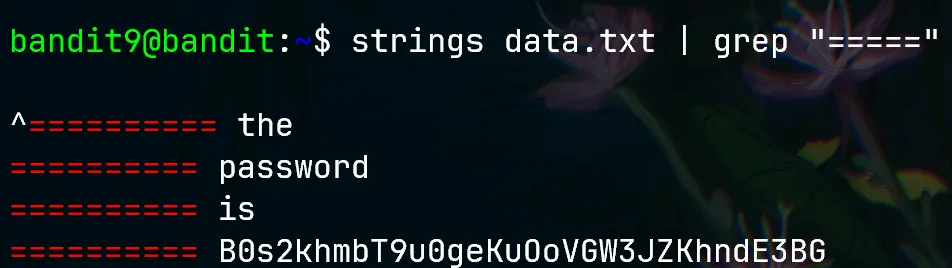
Để grep thì ta cần định dạng string, từ đó dùng string để biến data.txt thành string
=> Password:B0s2khmbT9u0geKuOoVGW3JZKhndE3BG
Level 10 -> 11
Level Goal
The password for the next level is stored in the file data.txt, which contains base64 encoded data
Kiến thức cần biết
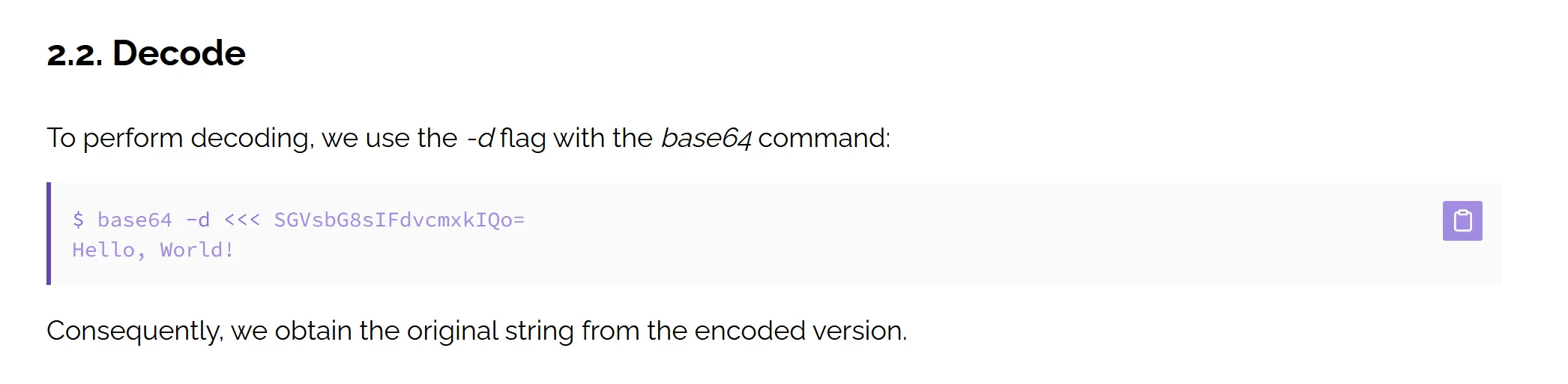
Login
Kết nối với level 10 bằng ssh
ssh bandit10@bandit.labs.overthewire.org -p 2220
Và nhập password B0s2khmbT9u0geKuOoVGW3JZKhndE3BG
Solution
ls -> data.txt
cat data.txt -> VGhlIHBhc3N3b3JkIGlzIHBZZk9ZNkh3VXNEajVyTDlVdnloVTdNQ212OHZONVJvCg==
Dễ nhận thấy đây là định dạng base64 encoded
Lên cyberchef decode thu được password: pYfOY6HwUsDj5rL9UvyhU7MCmv8vN5Ro
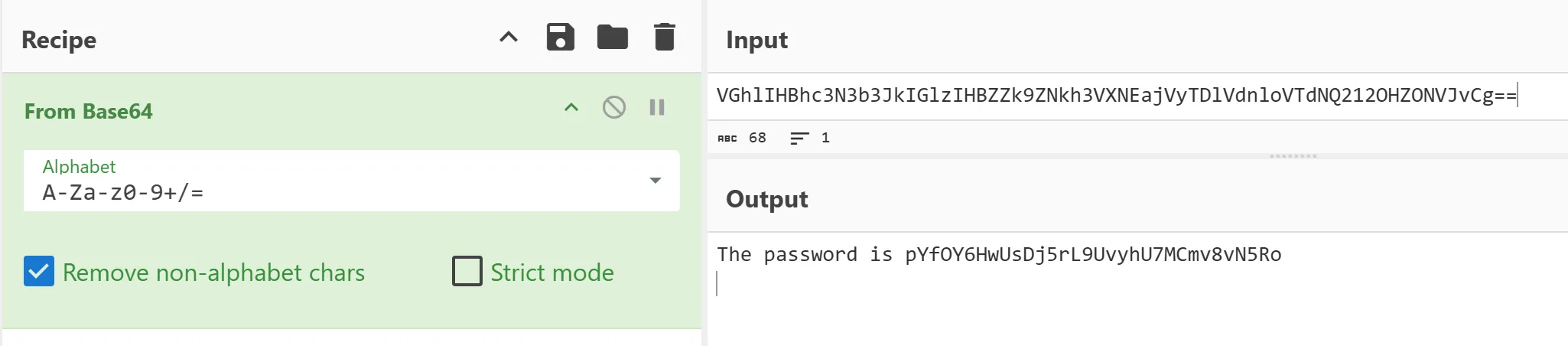
Hoặc có thể base64 decode trên terminal
cat data.txt | base64 -d
Level 11 -> 12
Level Goal
The password for the next level is stored in the file data.txt, where all lowercase (a-z) and uppercase (A-Z) letters have been rotated by 13 positions
Kiến thức cần biết
Login
Kết nối với level 11 bằng ssh
ssh bandit11@bandit.labs.overthewire.org -p 2220
Và nhập password pYfOY6HwUsDj5rL9UvyhU7MCmv8vN5Ro
Solution
ls -> data.txt
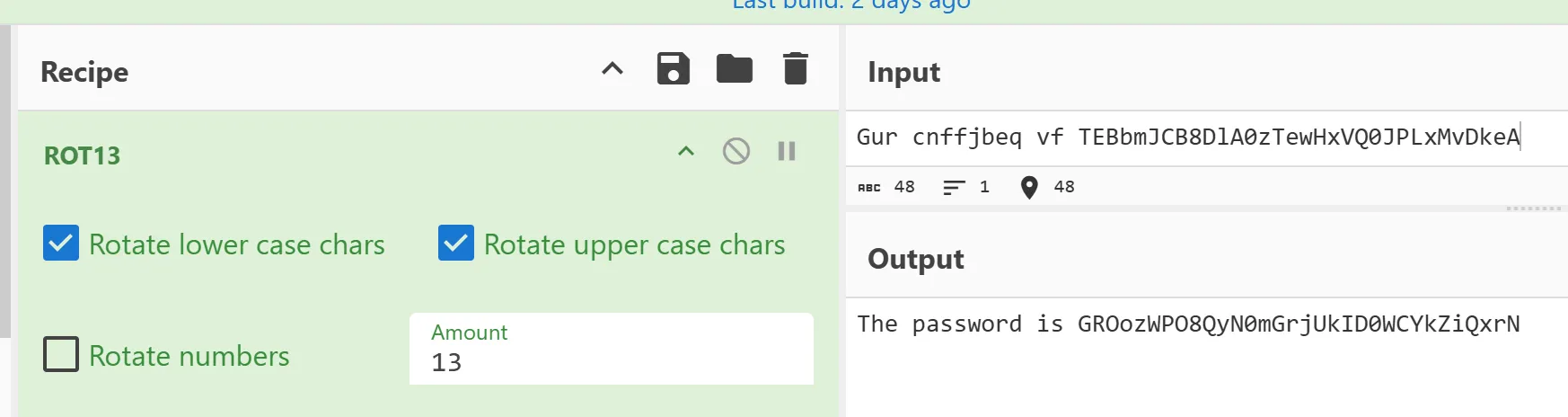
cat data.txt -> Gur cnffjbeq vf TEBbmJCB8DlA0zTewHxVQ0JPLxMvDkeA
Theo đề bài, đây là dạng ROT13 encoded
Lên cyberchef hoặc cryptii decode thu được password: GROozWPO8QyN0mGrjUkID0WCYkZiQxrN
Level 12 -> 13
Level Goal
The password for the next level is stored in the file data.txt, which is a hexdump of a file that has been repeatedly compressed. For this level it may be useful to create a directory under /tmp in which you can work. Use mkdir with a hard to guess directory name. Or better, use the command “mktemp -d”. Then copy the datafile using cp, and rename it using mv (read the manpages!)
Kiến thức cần biết
List of file signatures hoặc dùng file, xxd
mkdir <path> để tạo thư mục mới.
cp <source> <destination> để copy và dán files vào <destination>.
mv <source> <destination> để di chuyển hoặc đặt lại tên files.
mktemp -d để tạo thư mục với tên ngẫu nhiên
Login
Kết nối với level 12 bằng ssh
ssh bandit12@bandit.labs.overthewire.org -p 2220
Và nhập password GROozWPO8QyN0mGrjUkID0WCYkZiQxrN
Solution
ls -> data.txt
Or better, use the command “mktemp -d”
nên mktemp -d -> /tmp/tmp.A8DL6flaot

cp data.txt /tmp/tmp.A8DL6flaot -> copy và dán file vào thư mục tạm thời đã tạo
cd /tmp/tmp.A8DL6flaot để di chuyển tới thư mục tạm và cat data.txt để đọc data

Vì data.txt là một hexdump của một file bị nén nhiều lần nên ta nhìn headers để biết đây là file gì nhằm giải nén
Sử dụng List of file signatures để tìm loại file, đổi tên và dùng command thích hợp để giải nén
1f 8b -> GZIP compressed file

Vì các command giải nén chỉ hoạt động với file bytes, không phải là file hexdump nên ta phải revert về file bytes trước tiên
-> xxd -r data.txt > data.gz
Đối với
gunzipthì phải đổi tên file về.gz
rồicat data.gzta thấy đã được revert

gunzip -d data.gz -> Giải nén

ls -> data data.txt
cat data ta thấy file vẫn đã giải nén xong nhưng vẫn cần phải giải nén tiếp
Ta dùng file * để check loại tệp của các tệp tron gthư mục, sau đó đổi tên phù hợp với loại tệp rồi giải nén

Vậy ta giải nén file bzip2 rồi check loại tệp
bzip2 -d data
file *

Tiếp tục với file gzip nhưng lại gặp lỗi suffix

-> mv data.out data.gz rồi gzip -d data.gz
-> file * trả về output:
data: POSIX tar archive (GNU)
data.txt: ASCII text
Từ đó ta có file Tar archives nên đổi tên từ data -> data.tar
-> mv data data.tar
-> tar -xf data.tar (giải nén)
-> file *

-> tar -xf data5.bin (giải nén)
-> file *

-> bzip2 -d data6.bin (giải nén)
-> file data6.bin.out

-> tar -xf data6.bin.out(giải nén)
-> file * nhận thấy file có dạng gz

Vậy ta phải đổi tên tệp -> data.gz bằng mv
-> mv data8.bin data.gz
-> gungzip -d data.gz (giải nén)

-> cat data -> The password is qQYQiHOBPR8zR61qxYqX45quvihF2uzk
=> Password: qQYQiHOBPR8zR61qxYqX45quvihF2uzk
Level 13 -> 14
Level Goal
The password for the next level is stored in /etc/bandit_pass/bandit14 and can only be read by user bandit14. For this level, you don’t get the next password, but you get a private SSH key that can be used to log into the next level. Look at the commands that logged you into previous bandit levels, and find out how to use the key for this level.
If you need help with this level: a hint file can be found in the home directory.
Make sure to read the error messages as they are informative.
Kiến thức cần biết
scp
scp -P <port> <user>@<IP>:<remotefilepath> <localfilepath>
Login
Kết nối với level 13 bằng ssh
ssh bandit13@bandit.labs.overthewire.org -p 2220
Và nhập password qQYQiHOBPR8zR61qxYqX45quvihF2uzk
Soluion
Đăng nhập vào level 13, ls -> HINT và sshkey.private
Biết vị trí của file rồi tôi có thể chuyển về máy của mình sau khi log out bằng exit
-> scp -P 2220 bandit13@bandit.labs.overthewire.org:sshkey.private .
- port:
2220 - user:
bandit13 - IP:
bandit.labs.overthewire.org - remotefilepath:
sshkey.private - localfilepath:
.(Thư mục hiện tại)
Sau khi có sshkey.private ta thử đăng nhập vào màn tiếp theo nhưng nhận lại Permissions 0777 for 'sshkey.private' are too open.
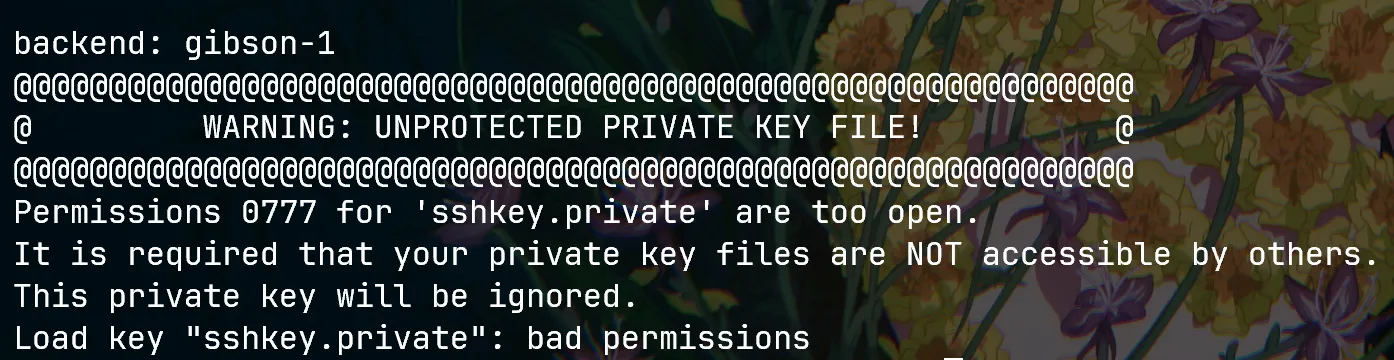
Vậy ta phải cấp quyền cho ssh.privatekey
-> chmod 600 sshkey.private
Nếu ta scp về /mnt/d thì sẽ không thể chmod được.
-> Vì thế ta phải scp về /tmp
ssh -i sshkey.private bandit14@bandit.labs.overthewire.org -p 2220

-> Password: aaWecNkG4FhxJQxz07uiwzVP6bJiYS65